

Set up your phone for recording
Many phones stop apps in the background to save battery – and the recording with it. Five minutes now saves a broken run later.
5 steps · 3 min · in the app
Open Phone setup
My account → Training & devices → Phone setup. It checks reminders and location, and shows what's still to fix.
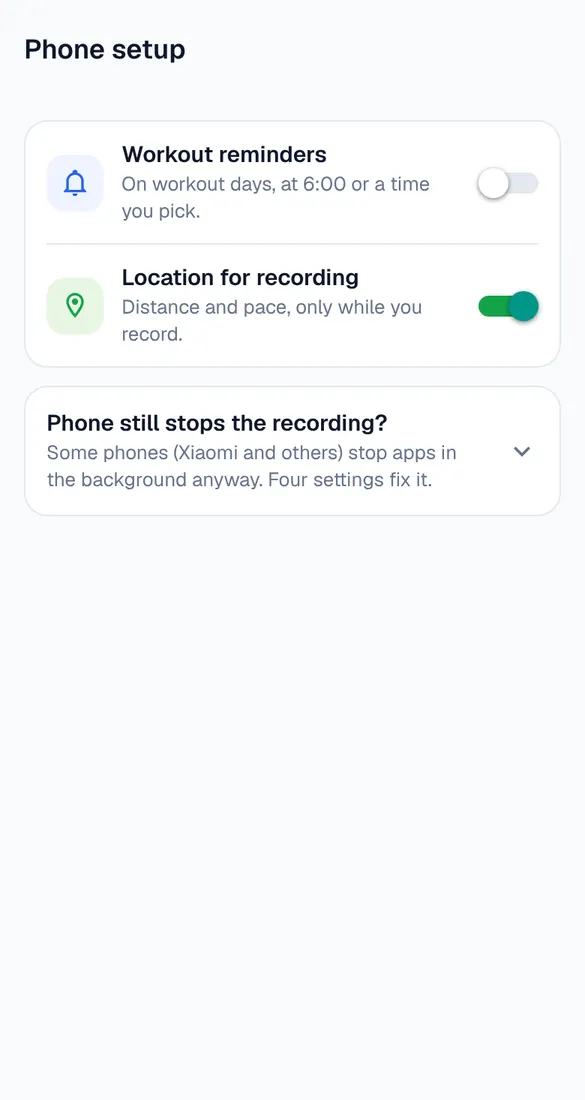
Allow location
Location → “Allow only while using the app”, with precise location on. Runbriel only uses it while you record a run.
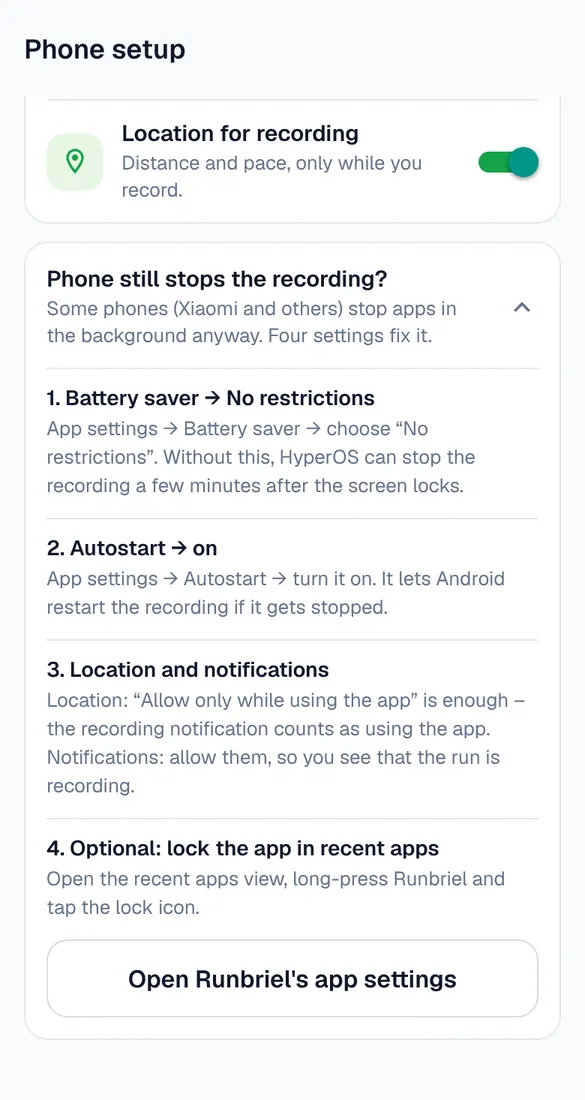
Turn off battery saving for Runbriel
Tap “Phone still stops the recording?” and follow the steps for your phone: battery saver → No restrictions, Autostart on, notifications allowed. The names differ a little between phone makers.
Allow notifications
While you record, Runbriel shows a notification. It keeps the recording going with the screen off, so leave it allowed.
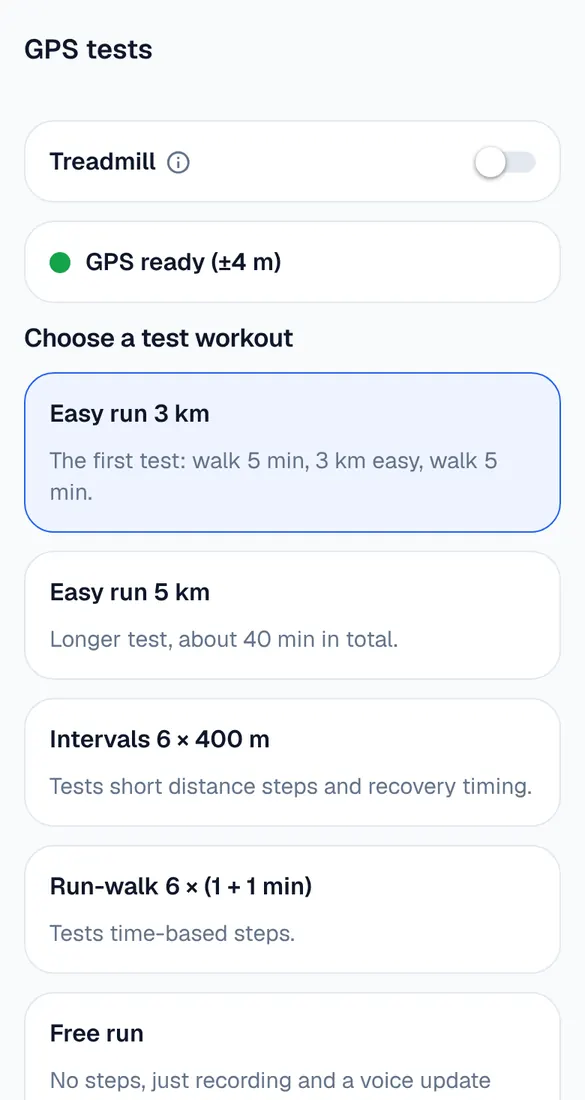
Do a short test
My account → More → GPS tests. Start “Easy run 3 km” or a free run, lock the screen, walk for a few minutes and finish. If the route has no gaps, your phone is ready.
Good to know
- Xiaomi, Huawei, OnePlus and some Samsung phones are the strictest. If a recording still stops, see “Recording stopped or bad GPS”.