

Your first run with Runbriel
From Today to a saved run: the session screen, the check-in, recording with voice steps, and saving to your plan.
7 steps · 3 min · in the app
Open today's workout
On Today, tap the workout card. The session screen opens with everything for this run, and Start pinned at the bottom.
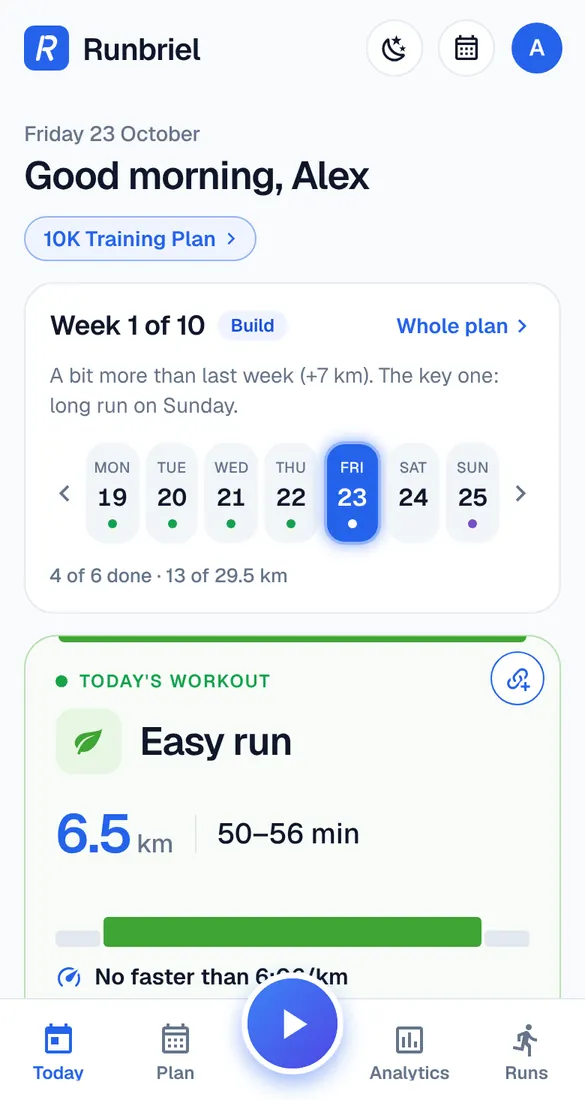
Outside or treadmill
At the top you see the GPS signal. Wait until it says “GPS ready” – outside, with a view of the sky, that usually takes under a minute. Pick Outside or Treadmill.
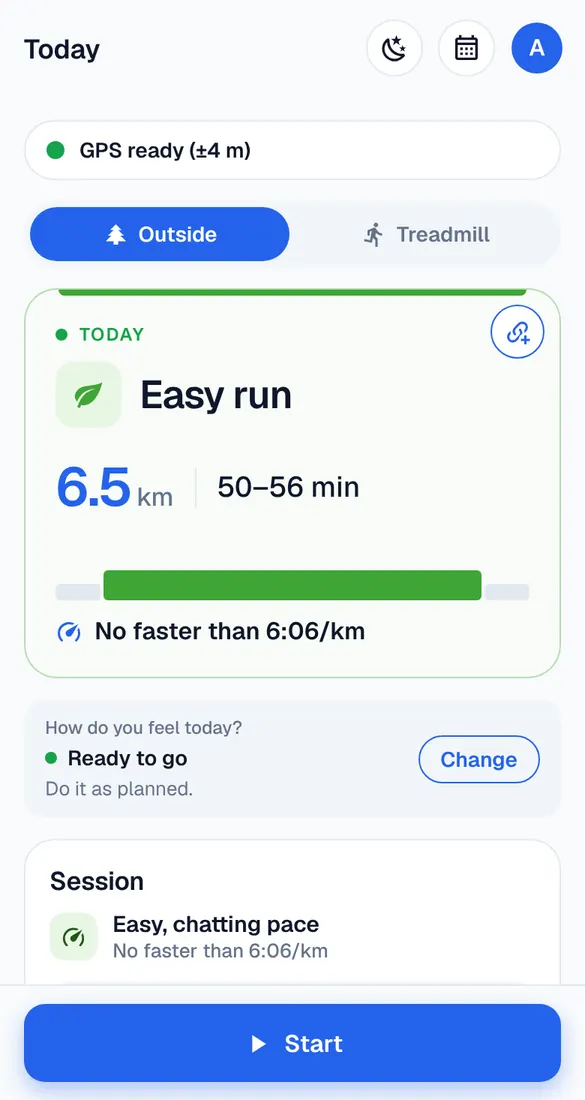
How do you feel?
The check-in is folded on “Ready to go”. Feeling tired or unwell? Tap Change: “A bit tired” offers an easier version, “Not today” suggests resting. The Start button changes with your answer.
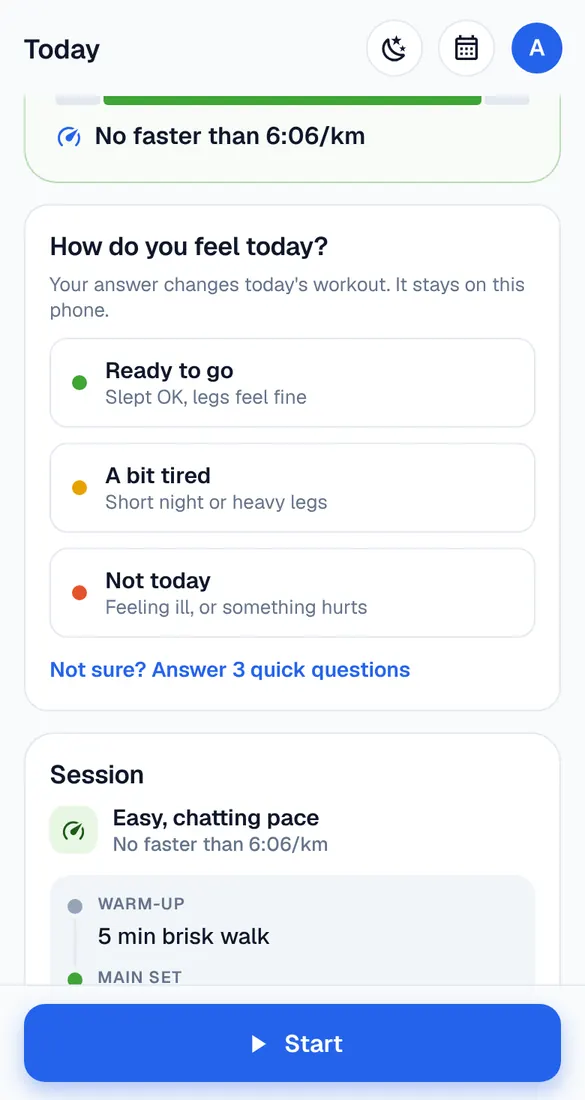
Start
Tap Start. A 5-second countdown with voice gives you time to put the phone away. Then the voice tells you each step: “5 minutes brisk walk”, “6.5 kilometres easy”…
During the run
Lock the screen – the recording keeps going. Every kilometre the voice gives your time and pace. Pause and Resume when you stop; Skip step if you need to.
Finish and save
Tap Finish, then say how hard it felt and add notes if you like. Tap “Save to your plan” – the workout is done, and your plan and progress update.
See your run
The run summary shows your map, splits per kilometre and the pace chart. You find every run again in the Runs tab.
Good to know
- No internet at the end? The run is saved on your phone and sent when you're back online.
- Want to change the voice or the countdown? My account → Phone recording.